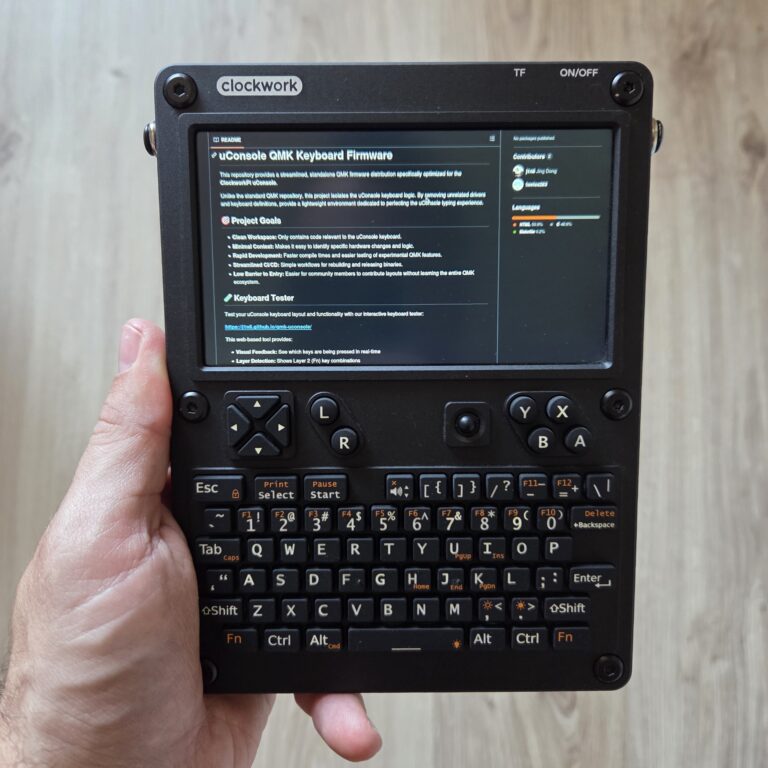
If you’ve been using a ClockworkPi uConsole as a daily device, chances are you’ve noticed something slightly off about the input experience. The keyboard works, the trackball works—but neither feels as precise or refined as you’d expect from such a well‑designed handheld. If you would like to know more about uConcole, check out my previous review blog.
Many users immediately assume this is a hardware problem, especially when the trackball feels jittery, noisy, or imprecise. In reality, most of these issues come down to firmware, not physical defects.
The good news? You don’t need to replace your trackball.
You don’t need new hardware.
You probably just need better firmware.
For more information with how to flash custom keyboard firmware, you can watch the video tutorial below.
What Firmware Does the uConsole Use by Default?
The uConsole keyboard and trackball are controlled by QMK firmware (Quantum Mechanical Keyboard firmware). QMK is an open‑source framework used by thousands of keyboards and input devices. It runs directly on the keyboard’s microcontroller and defines:
- How keys behave
- How layers work
- How mouse and trackball input is interpreted
- How scrolling and special modes work
Out of the box, the uConsole ships with a QMK‑based firmware derived from upstream QMK.
What Is “Upstream QMK”?
“Upstream QMK” refers to the main, official QMK project. It’s designed to support thousands of different keyboards, layouts, and microcontrollers. Because of that, upstream QMK must remain:
- Generic
- Conservative
- Hardware‑agnostic
That approach is great for compatibility—but it causes problems on very specific devices like the uConsole.
Why Upstream QMK Struggles on uConsole
1. Trackball Behavior Is Generic
The uConsole uses a small trackball paired with a 5‑inch 1280×720 display. Upstream QMK uses generic mouse acceleration curves designed for desktop mice and large monitors. On a handheld device, this results in:
- Jittery cursor movement
- Unpredictable acceleration
- Awkward scrolling
- Poor fine control
2. Power & DFU Issues
Many users have experienced the keyboard getting stuck in DFU mode after power changes. Upstream QMK assumes clean, stable USB power—something handheld devices can’t always guarantee. However, I haven’t experienced this issue myself.
3. No uConsole‑Specific UX
Upstream QMK cannot assume:
- That trackball exists
- That a scroll‑mode shortcut makes sense
- That gamepad inputs are needed
So, none of those are optimized.
The Solution: Custom QMK Firmware for uConsole
Community developer j1n6 created a custom QMK firmware specifically for the uConsole. Installation guide is available on the GitHub page. Very important, this process updates only the keyboard controller, not Linux itself.
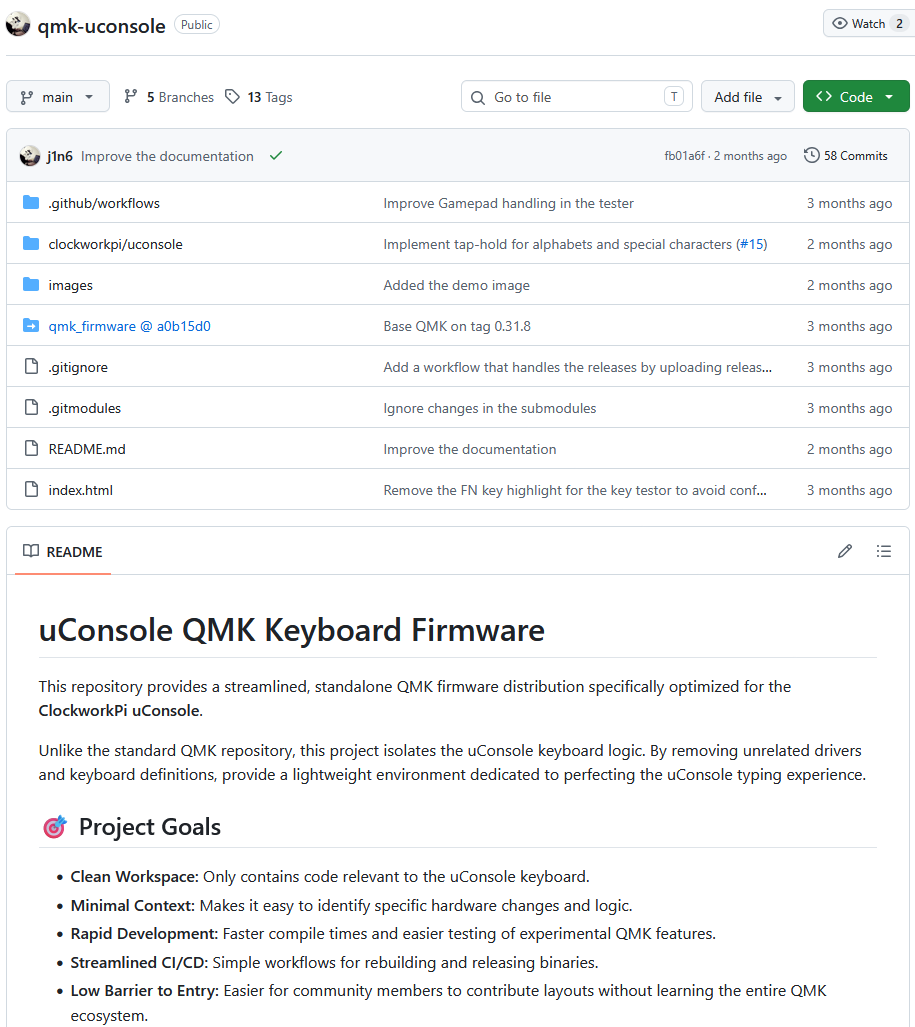
This is not a minor tweak—it’s a focused fork designed only for uConsole hardware.
What Custom Firmware Fixes:
- Trackball acceleration tuned for a 5″ screen
- Precision cursor mode for fine control
- Trackball scroll mode (vertical & horizontal)
- DFU boot‑loop protection
- Game mode for retro gaming
- Web‑based keyboard tester for easy debugging
The result: the uConsole feels like a polished daily‑driver device.
Trackball Still Noisy or Loose? Try the 3D‑Printed Shim
Firmware fixes most problems—but some uConsole units also have a slightly loose trackball fit, which causes noise or vibration.
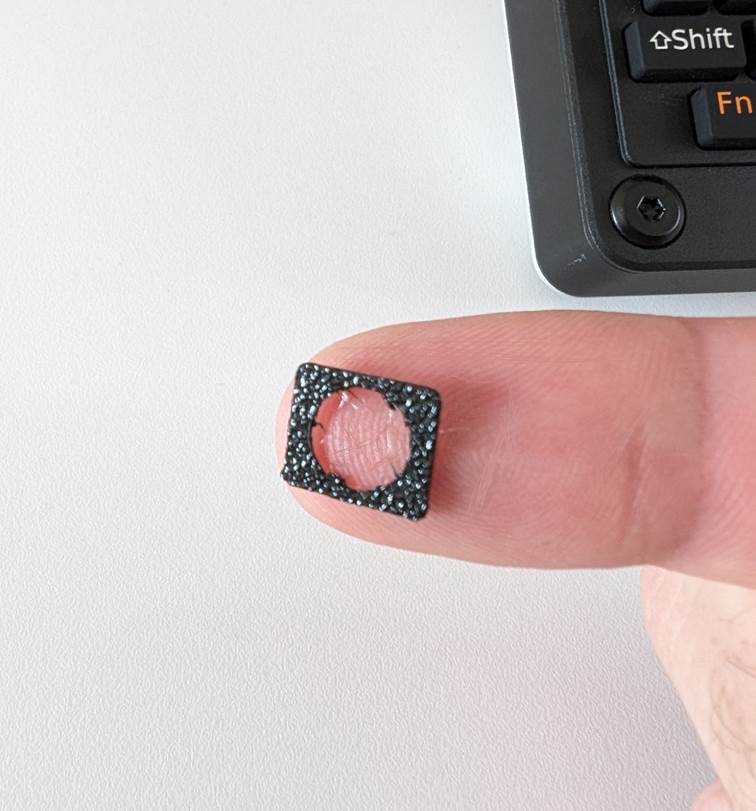
The same GitHub project recommends a small 3D‑printed shim that tightens the trackball fit.
Benefits of the Shim
- Reduces noise
- Eliminates excess play
- Improves tactile feel
- No need to replace the trackball
This is a simple mechanical fix that pairs perfectly with the custom firmware.
Final Advice for uConsole Users
If your trackball or keyboard feels off:
- Flash custom QMK firmware first
- Test usability improvements
- Add the shim only if needed
- Replace hardware only as a last resort
If you don’t already have a uConsole, they are still available from retailers like Sapsan, which makes it fairly easy to follow along with firmware and 3D printed shim input‑related device.